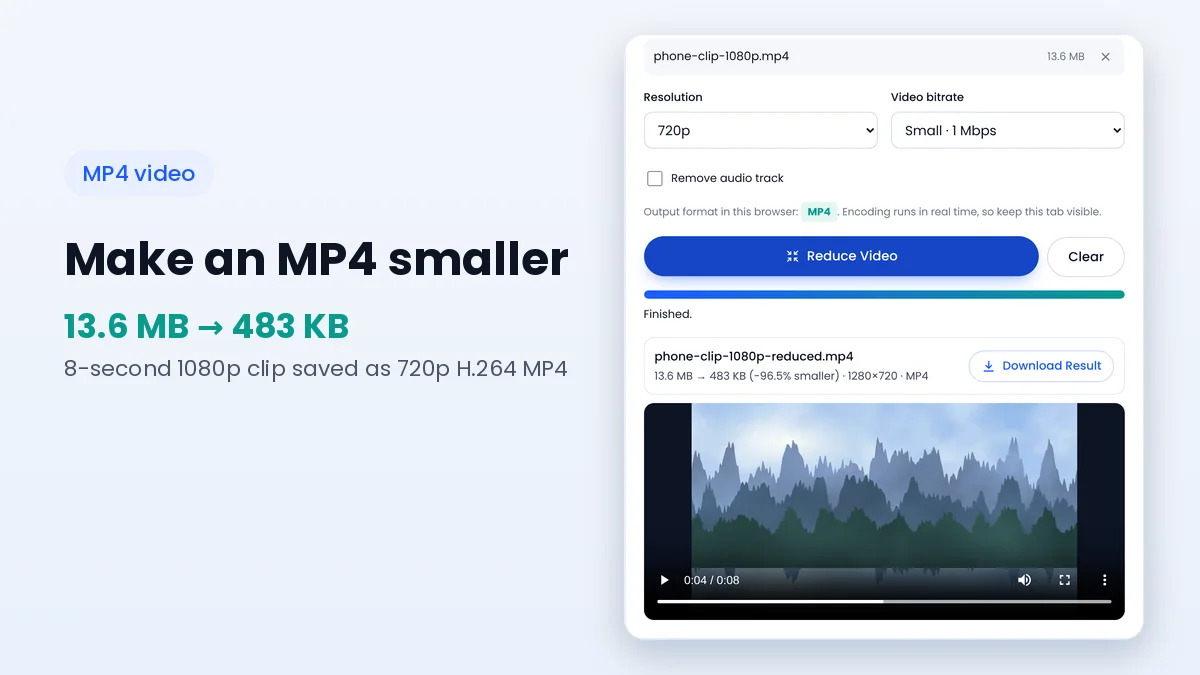
How to Make an MP4 File Smaller for Email and Uploads
Estimate the final size from bitrate and length, then pick settings that fit your limit.
Read guideFree online file compressor tools and desktop programs both make files smaller, but they differ in privacy, speed, setup and control. The right choice depends on how often you compress files, how sensitive they are and how much fine-tuning your work needs.
This comparison looks at the practical differences, including a third option that is easy to overlook: compressors such as File Reducer that run inside the browser without uploading anything.
Many online services work by uploading your file to their servers, compressing it there and offering a download link. That approach can handle heavy formats, but your document leaves your device and sits on someone else's computer for a while, often with storage and privacy terms you never read.
In-browser compressors load a web page and then process files locally with built-in browser features. They feel like a website but behave more like an app, since the file only travels from your disk into the tab's memory and back to your downloads folder.
For personal IDs, medical letters, contracts or unpublished work, where a file goes matters more than how small it gets. Desktop software and in-browser tools both keep the data on your device, while upload-based services require trust in their handling, retention and security practices.
Online tools win on setup: there is nothing to install, update or uninstall, and they work on shared computers where you lack admin rights. Upload-based services do add transfer time, which grows quickly with large PDFs and videos on slower connections.
In-browser processing skips that transfer entirely. Images and PDFs usually finish within seconds on a modern device, while video runs in real time. Desktop programs can encode video faster than real time, which matters when you handle long recordings every day.
Desktop software often supports more codecs, container formats and advanced options, such as two-pass encoding, HEVC or AV1 output, PDF/A conversion and detailed colour management. These features matter to video editors, print designers and archivists.
For everyday jobs such as shrinking photos for a form, scans for an email or a phone clip for a chat, a focused online tool covers what most people need. File Reducer, for example, offers quality, target size, resizing, PDF levels, video resolution and bitrate without the learning curve of a professional suite.
| Factor | Upload-based website | In-browser tool | Desktop software |
|---|---|---|---|
| Installation | None | None | Required |
| Where files go | Remote server | Stay on your device | Stay on your device |
| Transfer wait | Upload and download | None | None |
| Video speed | Depends on server queue | Real time | Often faster than real time |
| Advanced options | Varies | Focused essentials | Extensive |
| Works on any computer | Yes | Yes, with a modern browser | Only where installed |
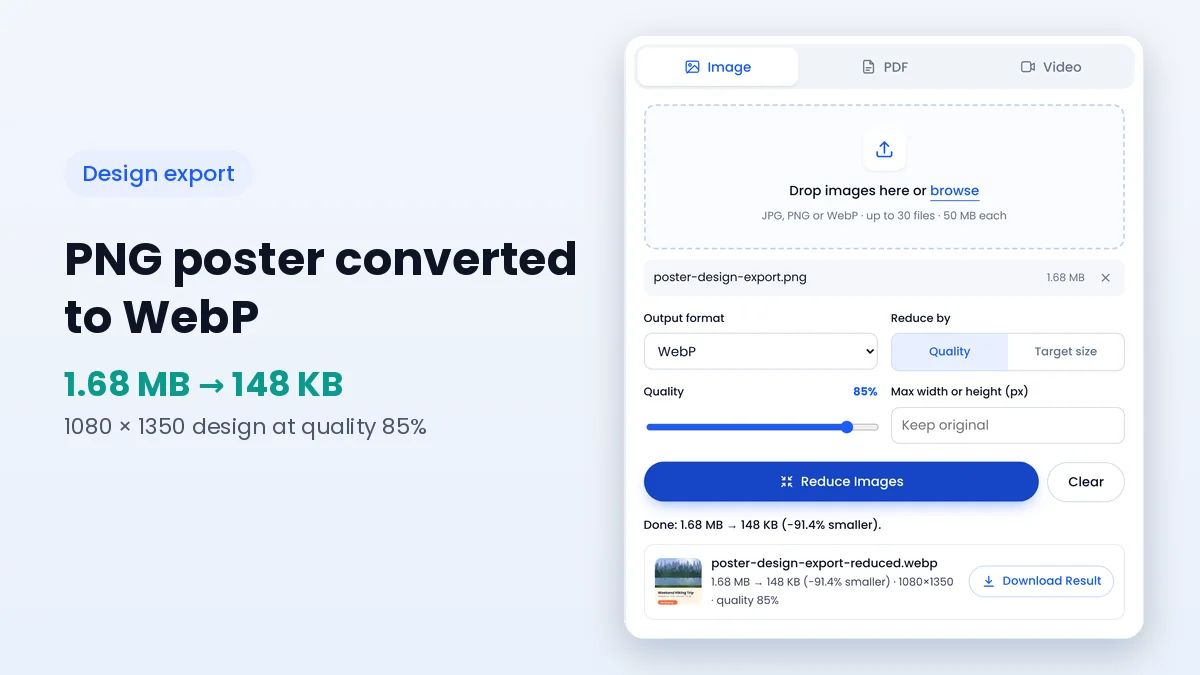
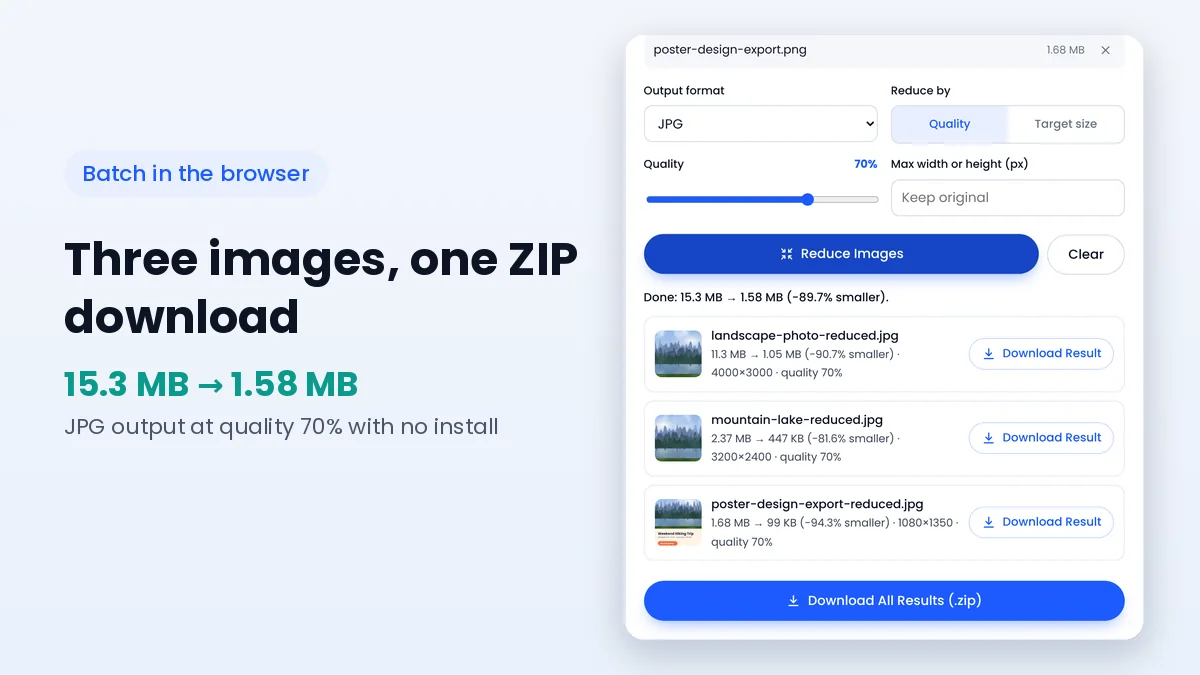
Batch support varies widely. File Reducer processes up to 30 images at once and offers a single ZIP download, which handles most photo sets from an event or a product shoot. PDFs can be added ten at a time, while videos are processed one by one.
Thousands of files, watched folders and scripted workflows remain the territory of desktop and command-line tools. If compression is part of a daily production pipeline, an installed program with automation features will save more time in the long run.
Many upload-based services offer a free tier with limits on file size, daily jobs or output quality, and move advanced features behind a subscription. Desktop software ranges from free open-source programs to paid professional suites, with the cost often justified by speed and depth.
In-browser tools like File Reducer have no per-file server costs, because your own device does the work. That makes it practical to offer the full feature set without accounts, credits or watermarks, which suits people who compress files now and then rather than every hour.
Online tools shine on devices where installing software is awkward or impossible, such as school computers, work laptops with locked settings and tablets. A browser-based compressor works the same way on each of them, and nothing remains on a shared computer once the tab is closed.
Phones have less memory than laptops, so very large photos and long videos are better handled on a computer. Everyday photos, scans and short clips work well on a modern phone browser.
It depends on where processing happens. Tools that run in the browser, like File Reducer, keep files on your device. Upload-based services send files to their servers.
The page needs to load first. After that, File Reducer processes files locally and does not need to send anything over the network.
Results depend more on settings than on the tool type. Desktop software offers more advanced codecs, but for typical photos, PDFs and clips the difference is often small.
Yes. Many people use a browser tool for quick everyday jobs and keep desktop software for heavy editing or large batches.
Free online file compressor tools are ideal for quick, occasional jobs, and the in-browser kind adds desktop-level privacy without any installation. Desktop software still leads for long videos, special formats and automated batches, so many people simply keep both.
Try the browser-based compressor with a typical file from your week, and read the free file compressor overview to see how each file type is handled.
Keep learning how to make images, PDFs and videos smaller.
Estimate the final size from bitrate and length, then pick settings that fit your limit.
Read guideMake design exports lighter for clients, websites and social posts while keeping text sharp.
Read guideThe real reasons files resist compression, and the settings that make the biggest difference.
Read guide