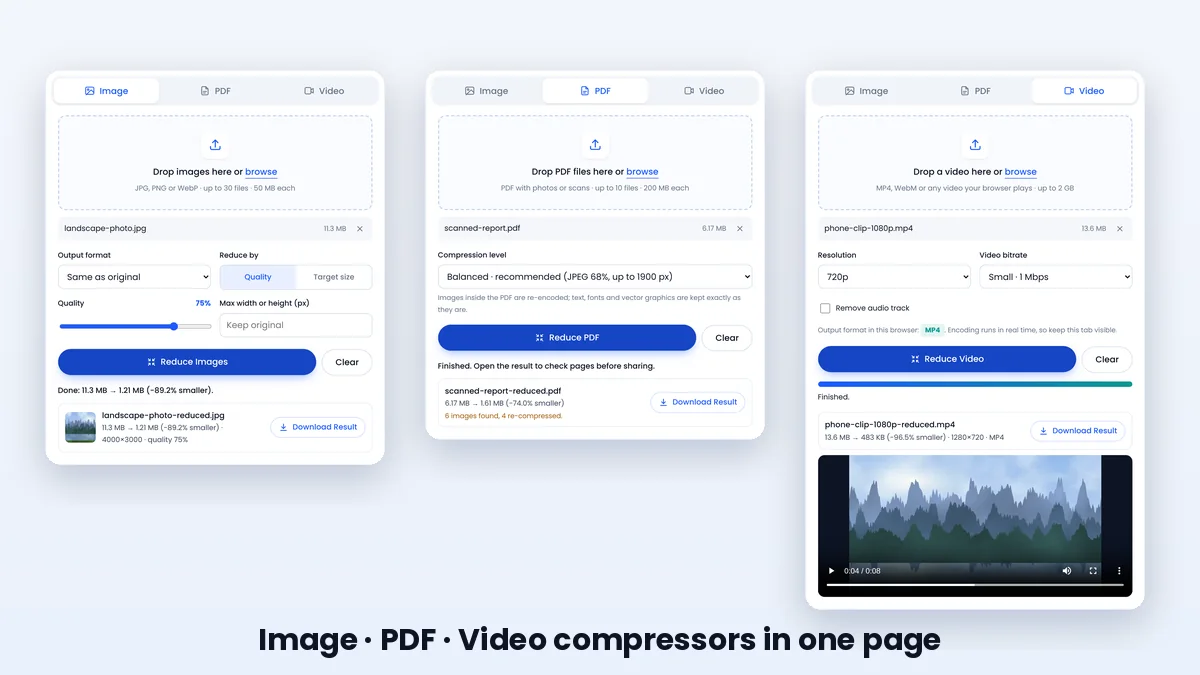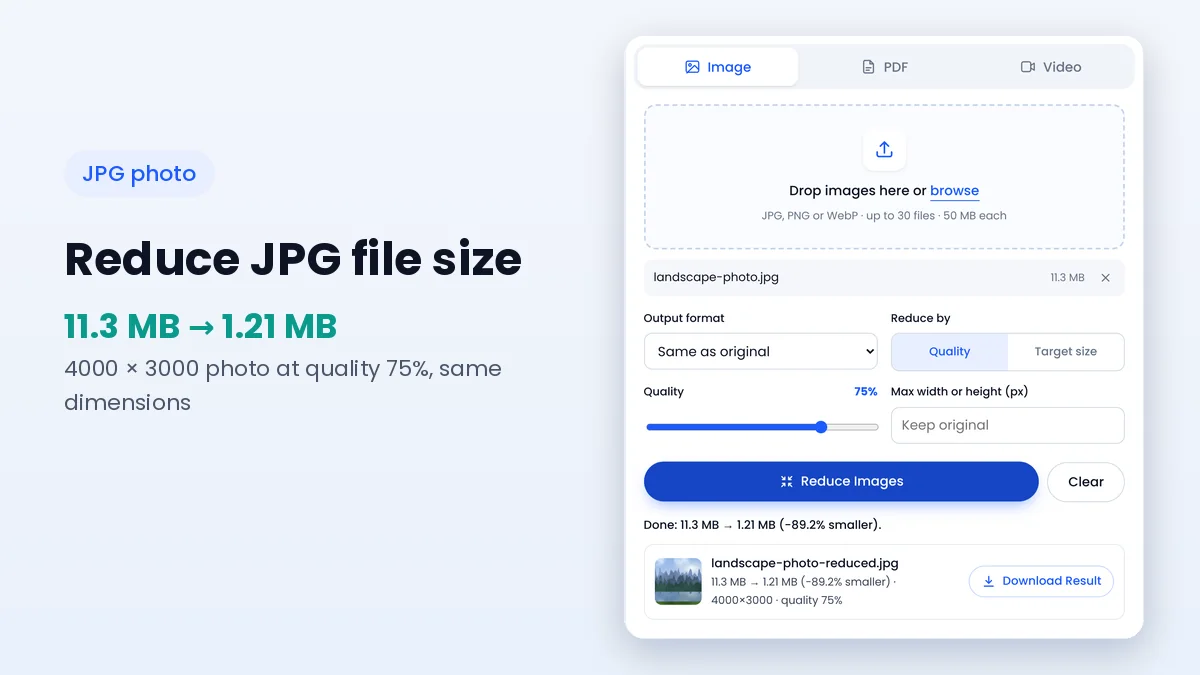
How to Reduce JPG File Size Without Visible Quality Loss
Quality values, resizing and target-size mode explained for photos that need to fit an upload limit.
Read guideFile reducer tools cannot shrink every file by the same amount, and sometimes a result barely changes or even grows. That is not a fault in the tool; it is a sign that the file has little left to remove with the current settings, or that its content is stored in a way that resists compression.
This article explains the most common reasons a file stays too large, what each message in File Reducer means and which setting changes make a real difference.
JPG photos, MP4 videos and many PDFs are compressed when they are created. If the original was saved at a modest quality, compressing it again at a similar quality removes very little, because the easy savings were taken the first time. The tool shows the exact before and after sizes so this is easy to spot.
Lower the quality, reduce the dimensions or choose a more efficient format to go further. For videos, pick a bitrate clearly below the original's; if the original already uses a low bitrate, a lower resolution is the only way to save more.
PNG is lossless, so re-saving it as PNG keeps every pixel and rarely saves space. The browser's encoder can even create a slightly larger file than a carefully optimised original, which is why File Reducer marks such results as larger.
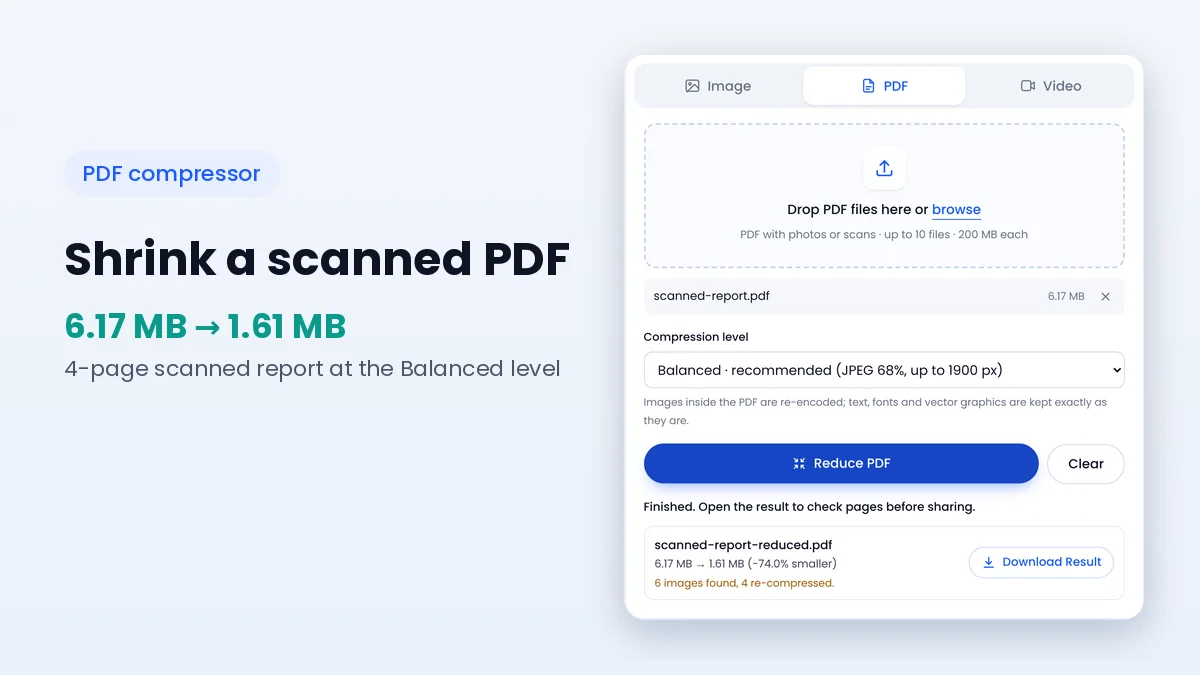
The PDF compressor re-encodes raster images. Documents made of text, vector charts and fonts are already compact, so the tool reports that no reduction was possible. Large fonts embedded in full can add size, but changing them safely requires dedicated desktop software.
Some images are also skipped on purpose to protect the document: CMYK images that could change colour, special black-and-white scan encodings that are already efficient, and masks that control transparency. Encrypted PDFs are not processed at all.
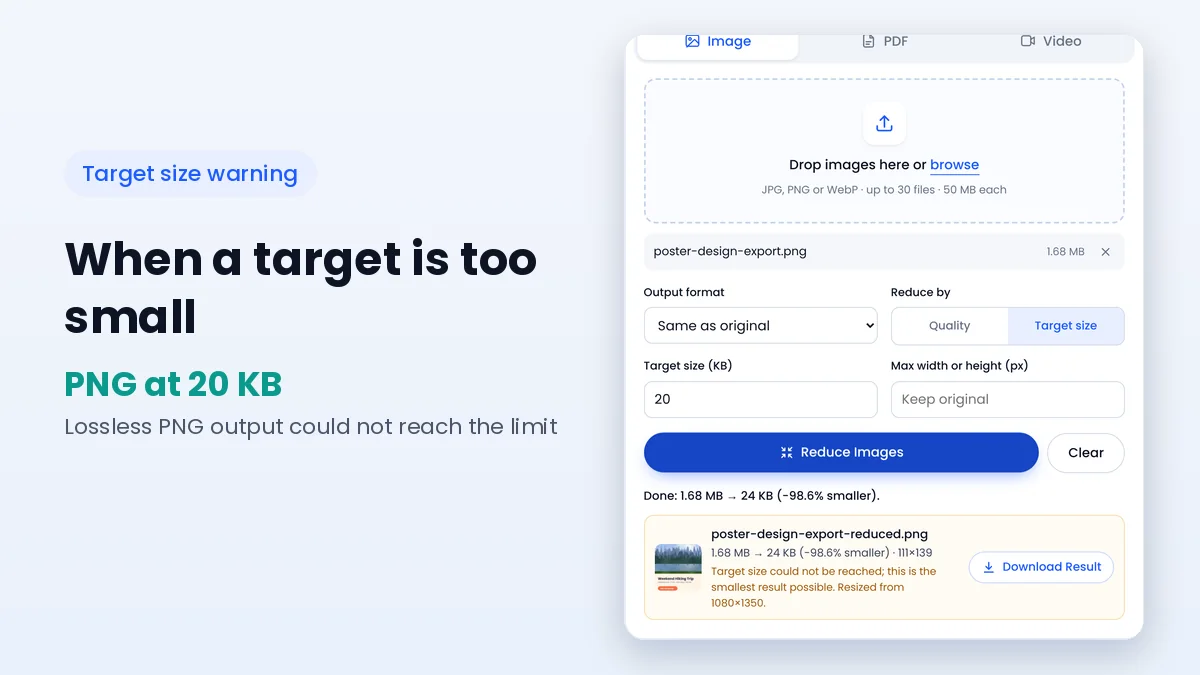
In Target size mode, the image compressor first lowers quality and then scales the picture down step by step. If even a heavily reduced version cannot fit, the result is marked with a warning saying the target could not be reached, and the smallest possible version is offered instead.
Very small limits often need a different approach, such as cropping away unneeded areas before compressing or asking whether the destination accepts another format like WebP.
Recordings from messaging apps or older uploads often use modest bitrates already. Re-encoding them at a similar bitrate cannot save much and may even create a larger file, which the tool flags with a note to choose a lower bitrate or resolution.
Detailed or fast-moving scenes are also harder to compress. Lowering resolution to 480p or 360p frees the most data when the bitrate presets alone are not enough.
| What you see | Likely cause | What to change |
|---|---|---|
| Image result marked larger | PNG output or already low quality | Use WebP or JPG, lower quality, set a max size |
| “Target size could not be reached” | Limit too small for the content | Crop first, or accept a slightly larger target |
| PDF shows no reduction | Text-only file or skipped image types | Try Strong; otherwise the file is near its minimum |
| Video barely shrinks | Original bitrate already low | Lower resolution and choose a smaller preset |
| Browser error on a large file | Device memory limit | Use a computer or reduce dimensions in steps |
Because everything runs on your device, available memory sets the practical ceiling. Extremely large photos or long videos can exceed what a phone or older laptop can process in a browser tab, and the tool reports an error rather than producing a damaged file.
Closing other tabs, using a desktop computer or processing fewer files per batch usually helps. For video, keeping the tab visible prevents the browser from slowing the work down.
Camera details, GPS data and embedded previews can add a few dozen kilobytes to a photo, and File Reducer removes them automatically when it redraws an image. That helps privacy, but it seldom solves a size problem on its own, because pixels and quality settings account for almost all of the bytes.
The same holds for PDFs. Document properties and bookmarks are tiny compared with scanned pages, so the real savings always come from the embedded images rather than from stripping information.
When a file refuses to shrink, try changes in order of impact rather than nudging one slider repeatedly. Each step below usually saves more than the one after it.
Sometimes the smallest acceptable version is still larger than you hoped. A scanned contract must stay readable, and a product photo must still show detail. In those cases, ask whether the destination offers another route, such as a higher limit for a different format, a multi-file upload or a shared cloud link.
Splitting a long PDF or video into parts with a dedicated editor is another reliable option. Each part can then be reduced separately and still meet the limit without sacrificing the clarity that makes the file useful.
File reducer results depend on how much removable data a file still contains. When a file stays too large, the fix is usually a change of format for PNGs, a smaller size or lower quality for photos, a different level for PDFs, or a lower resolution for videos.
Return to the compressor with those adjustments, and see the PDF compressor guide or the JPG size guide for deeper explanations of each file type.
Keep learning how to make images, PDFs and videos smaller.
Quality values, resizing and target-size mode explained for photos that need to fit an upload limit.
Read guideWhat a browser-based compressor can do for each file type, and what to expect from the results.
Read guideWhy scans are heavy, what the Light, Balanced and Strong levels change and when a PDF cannot shrink.
Read guide